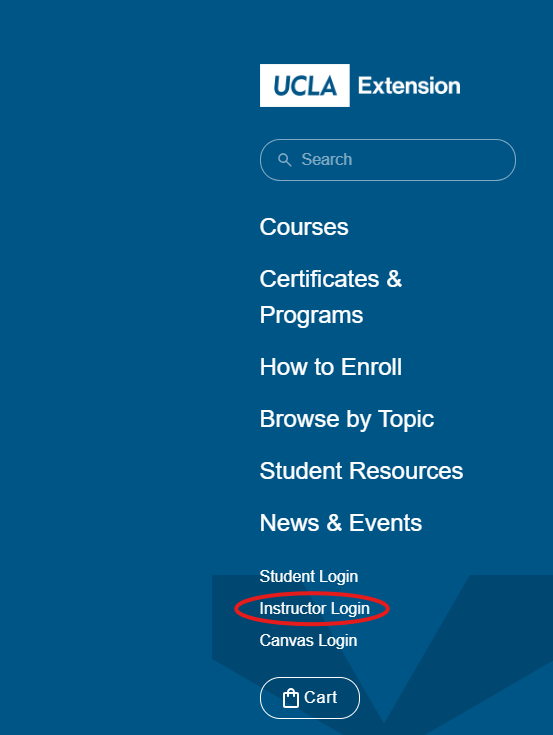
On the Instructor Login page, enter your user name in the Username field, and your password in the password field and click Continue. This username may be your T number or your email address.
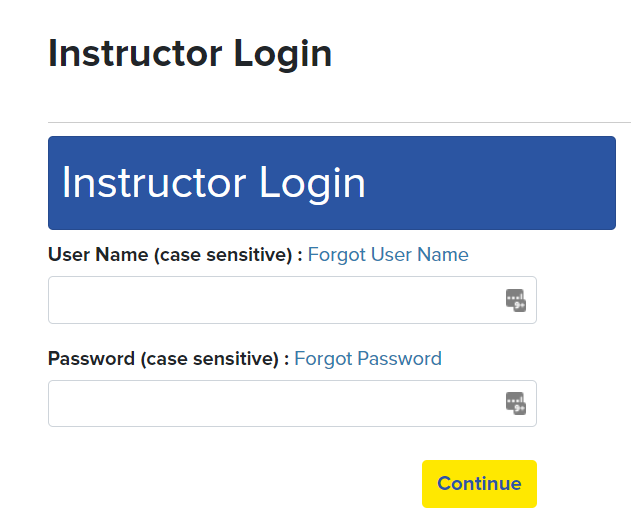
If you do not know your Username, you must click "Forgot User Name", and enter the email address associated with your instructor profile and click continue.
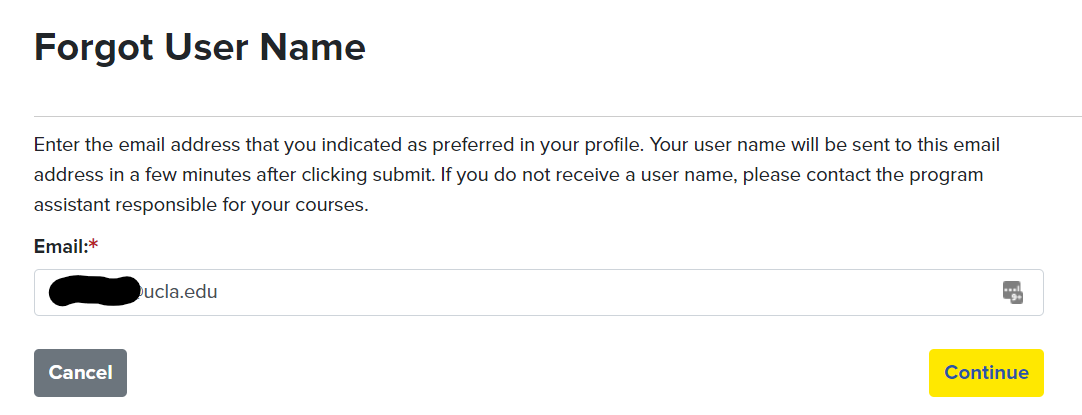
NOTE: Your program representative can assist you with which email address is associated with your record. Your email address as a UCLA Extension instructor should be your @ucla.edu address.
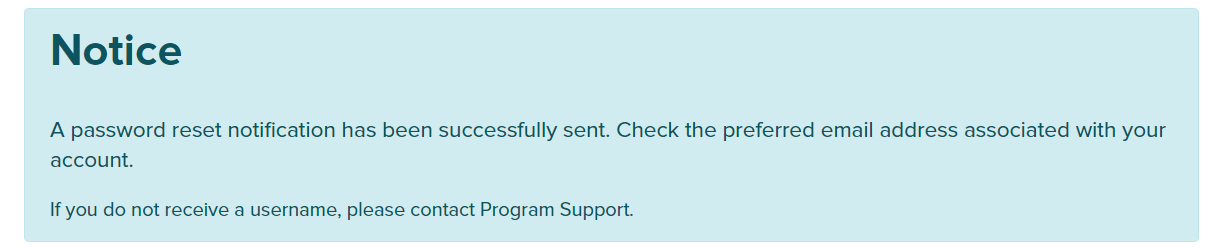
You should see the following on your screen
At this point sign into your email (g.ucla.edu usually) to retrieve your Username. The message will be from UCLA Extension <enroll@uclaextension.edu>, and the subject will be UCLA Extension User Name

The message will appear as follows
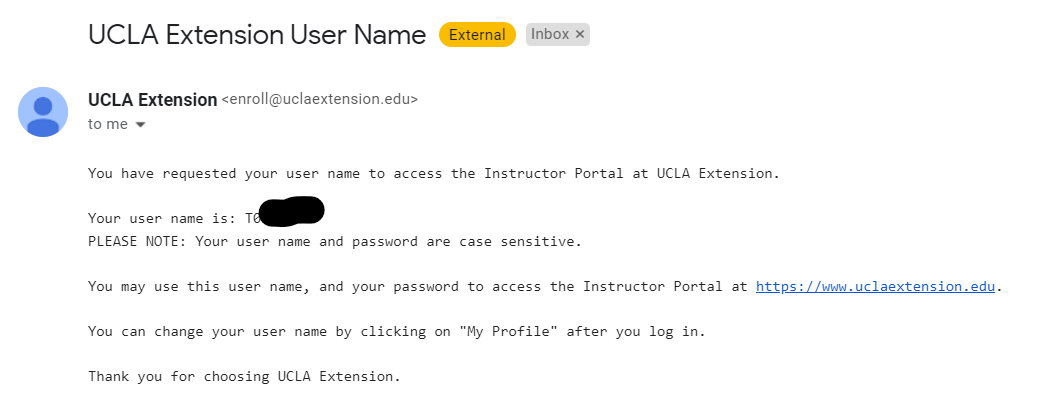
Copy the username and paste into the user name field and enter your password. You can recover your password by clicking the Forgot Password link and enter your Username in the User Name field and click Continue
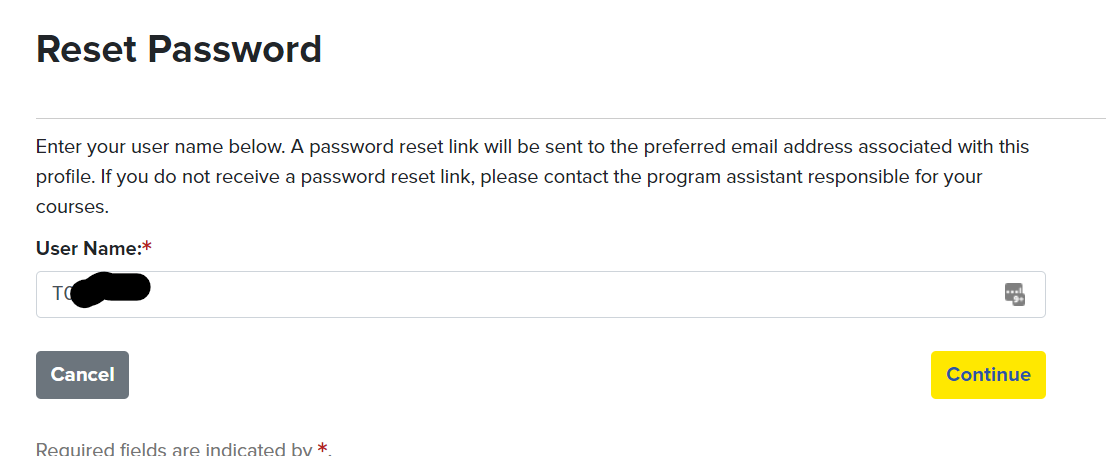
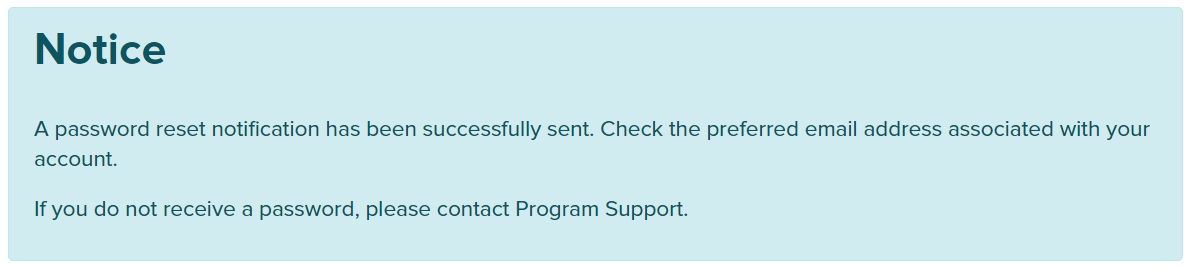
You should see the following notice appear on your screen
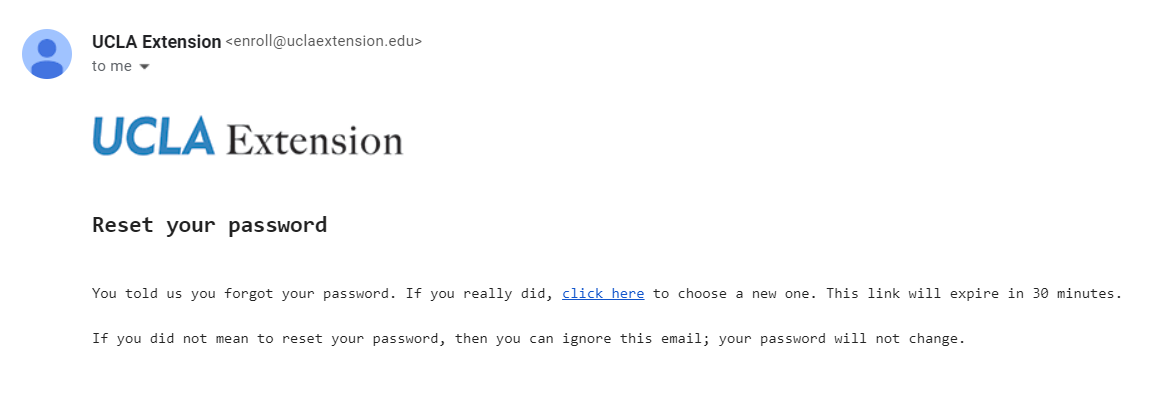
Go back to your email to look for an email from UCLA Extension <enroll@uclaextension.edu> with the subject line of UCLA Extension Password Reset

Trouble locating these notices in Gmail?
We suggest disabling "conversation view" (or grouped email threads) in Gmail. Start by opening Gmail in a web browser and signing in.
Once signed in, click the setting gear icon in the top-right corner.
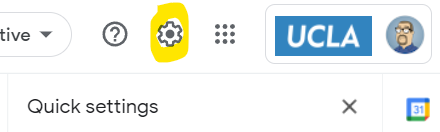
This will open the "Quick Settings" menu panel. Scroll through the menu options and uncheck the "Conversation View" checkbox at the bottom.
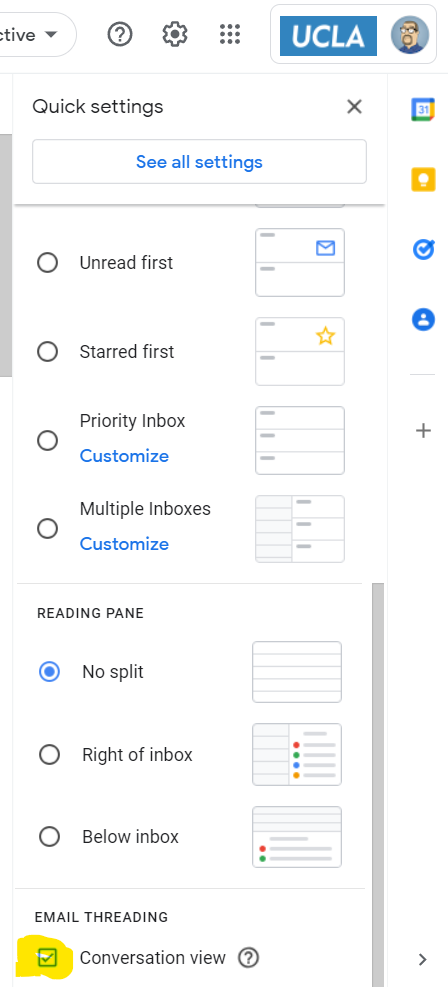
Gmail will need to reload at this point, so press the "Reload" button in the pop-up box
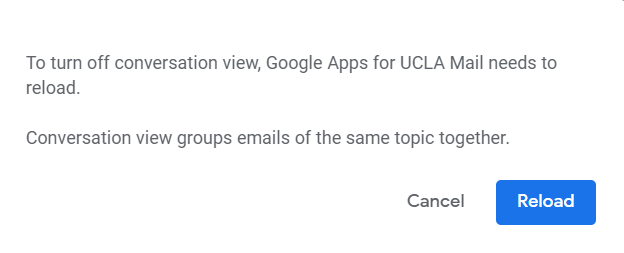
Once it has been refreshed, your Gmail inbox will change, separating each email reply from any linked email chains.
Additional Help
You should have all the information you need to sign into your instructor portal now. If you encounter any difficulties please check with your program representative for further assistance.